Account and team / Two-factor
Two-factor authentication
Ask for a code from your phone, or a passkey, at every sign-in, so a stolen password is not enough on its own.
Why turn it on
Anyone who can sign in to your account can create and destroy machines and, depending on your role, move money. Two-factor means a password alone is not enough: signing in also needs a code from an authenticator app on your phone.
Turn it on
You are offered it during setup, in the Security step. If you skipped it, go to Profile from the account menu and find Two-factor.
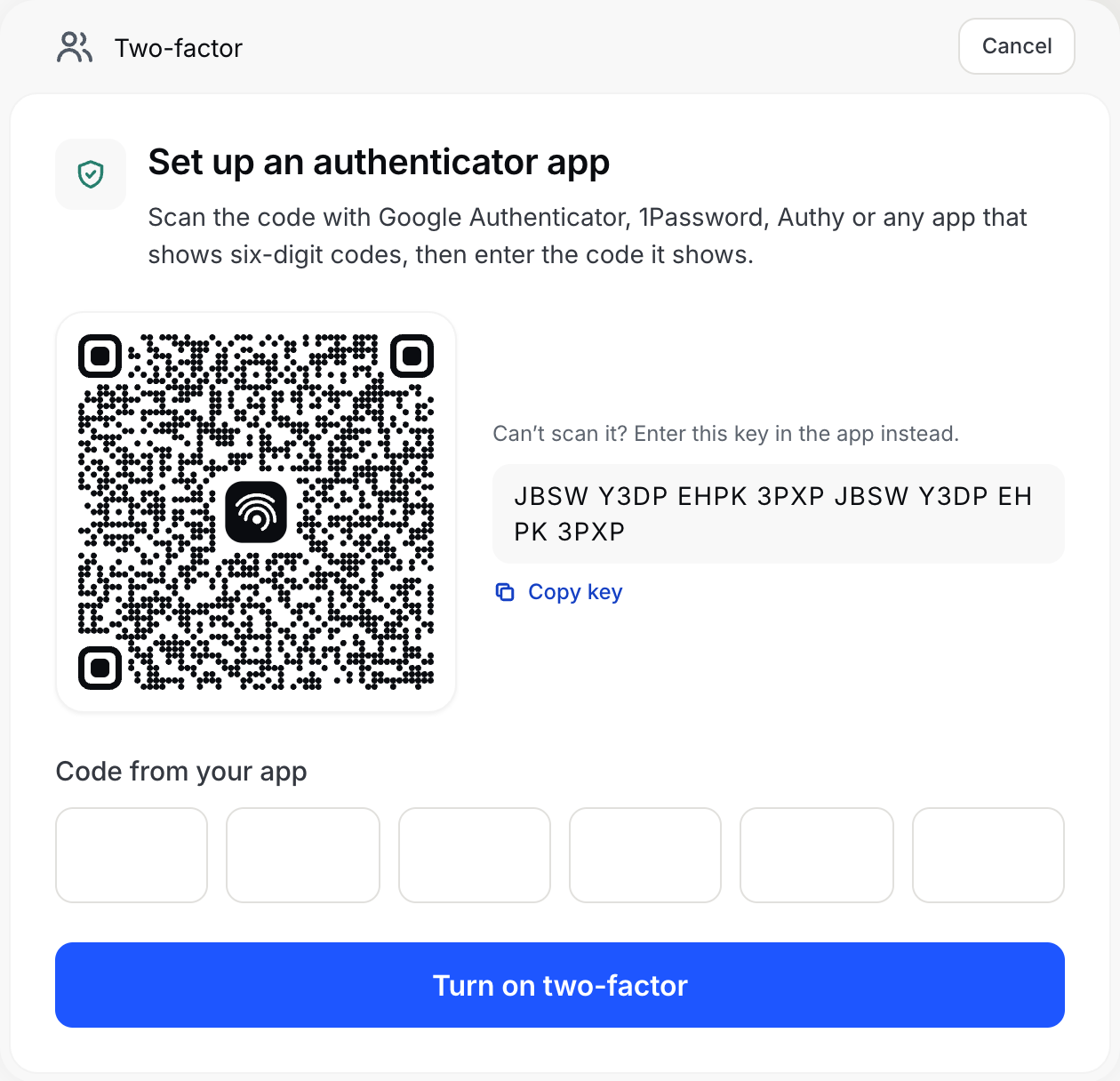
- Press Set up authenticator app.
- Scan the QR code with Google Authenticator, 1Password, Authy, or any app that shows six-digit codes. If you cannot scan it, copy the key shown under it into the app instead.
- Enter the six digits the app shows, and press Turn on two-factor.
Save your recovery codes
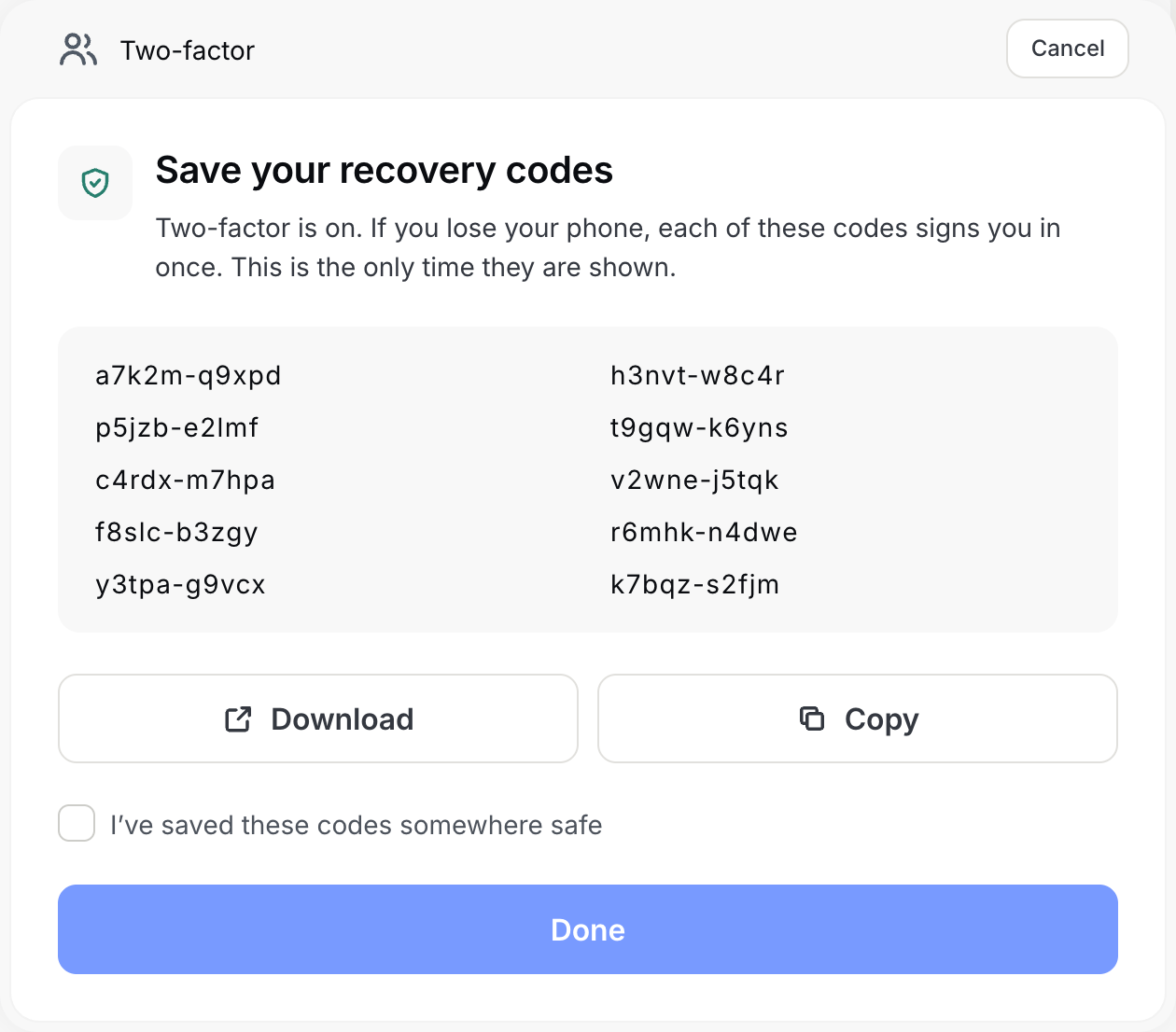
As soon as two-factor is on, you are shown a set of recovery codes. Each one signs you in once without your phone. This is the only time they are shown.
Press Download or Copy and keep them somewhere safe, such as a password manager or a printed copy put away. Then tick I've saved these codes somewhere safe and press Done.
Passkeys and security keys
A passkey (Touch ID, Face ID, Windows Hello, your phone) or a hardware security key can be your second factor instead of, or as well as, an authenticator app. On Profile, under Two-factor, press Add a passkey, name it after the device it lives on, and follow your browser's prompt. If it is your first second factor, you are shown recovery codes, as above.
Each passkey is listed with its name, which you can Rename, and can be removed.
Signing in with two-factor
After your password, enter the code your app shows for Pantech. Codes change every 30 seconds; if one is refused, wait for the next. With a passkey, choose Use a passkey or security key and confirm on your device.
No phone? Choose Use a recovery code and enter one of your saved codes, like xxxxx-xxxxx. Each code works once.
Running low on recovery codes
Profile shows how many recovery codes you have left. Before you run out, press Generate new codes. Your old codes stop working the moment new ones are made, and the new set is shown once.
Turn it off
On Profile, press Turn off two-factor and confirm with a code from your app or a recovery code. Your authenticator app and every recovery code stop working, and signing in needs only your password again.
Lost your phone and your codes
Without your app or a recovery code, two-factor cannot be turned off from the console. Contact us from the email address on the account.