Getting started / Quickstart
Launch your first machine
From a new account to a running server in Africa in a few minutes. You will sign up, set up your organization, create a virtual machine in the console and connect to it over SSH.
1. Sign up
Go to console.pantechdynamics.com/signup and sign up with your work email and a password of at least 12 characters, or with Google. We email you a six-digit code: enter it on Verify your email to confirm the address and sign in. You can't use the account until you do. If you close the page first, the next sign-in sends a new code and asks for it before anything else. Google sign-ups skip this step.
2. Set up your account
Once your email is verified, the console walks you through four short steps. If you stop part way, it picks up where you left off.
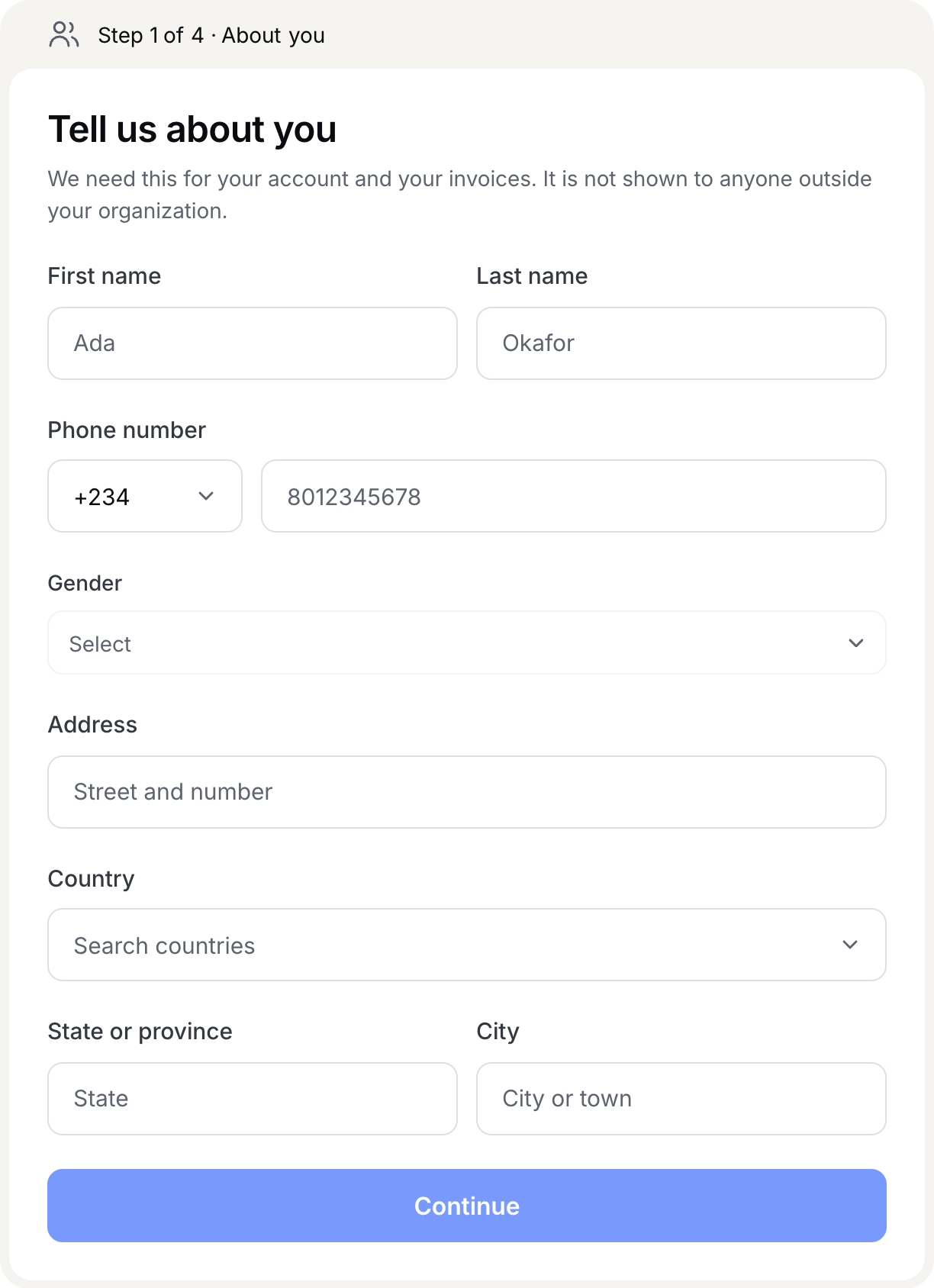
About you. Your name, phone number and address. They go on your invoices and are not shown to anyone outside your organization.
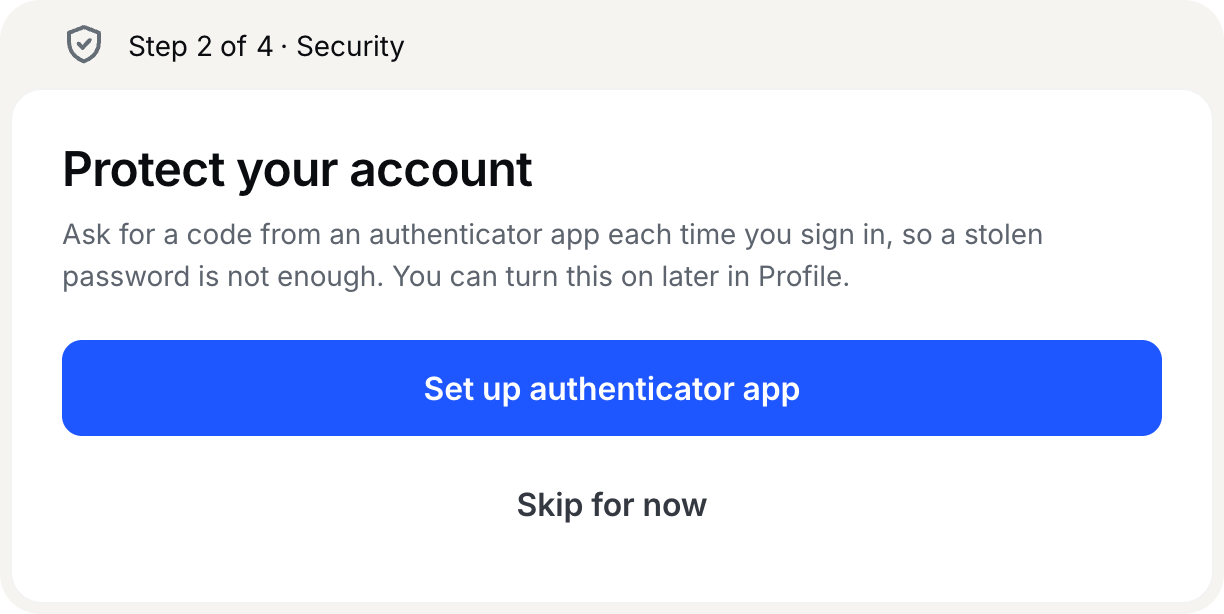
Security. Turn on an authenticator app so a stolen password is not enough to sign in. You can skip this and turn it on later in Profile.
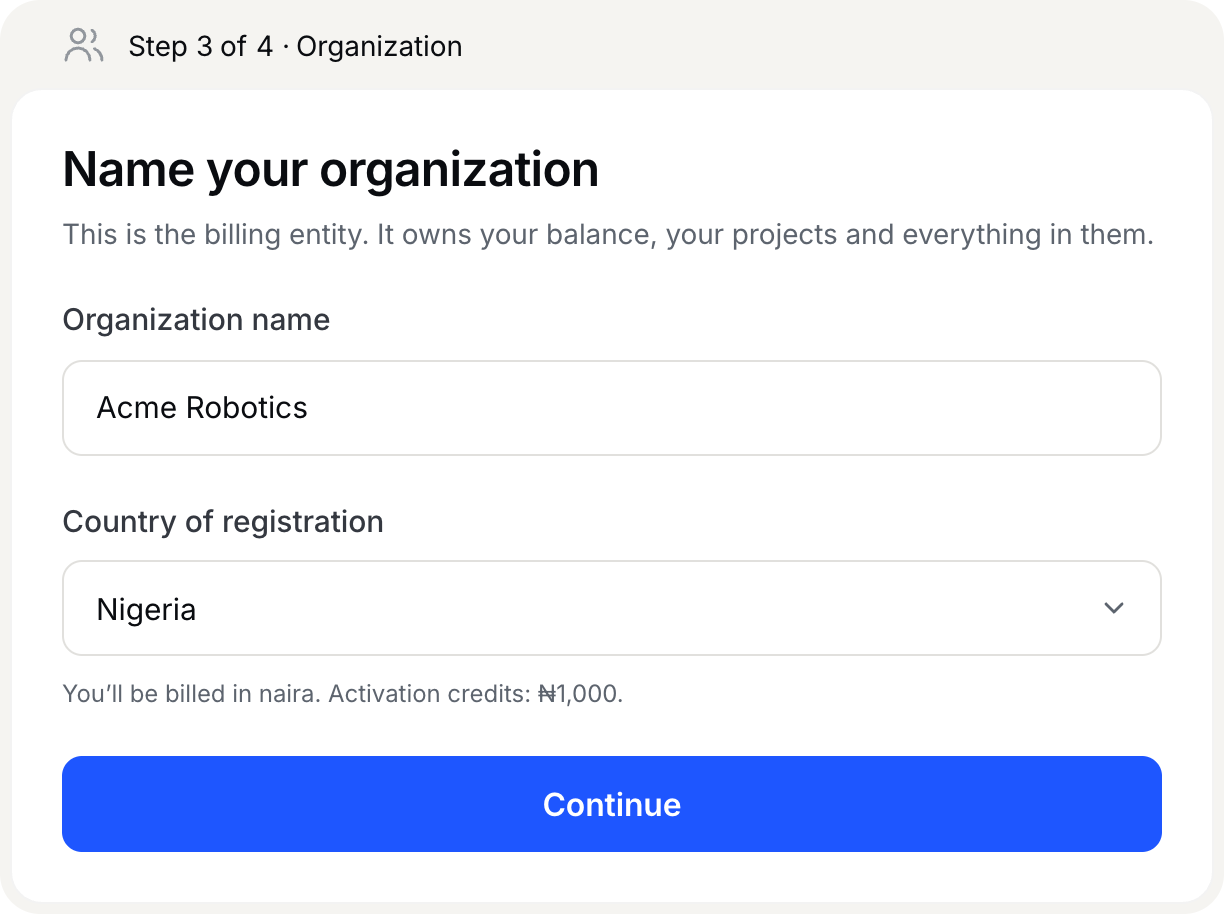
Organization. The organization is the billing entity: it owns your balance, your projects and everything in them. Give it a name and the country it is registered in. The country sets your billing currency for good: naira for Nigeria, US dollars everywhere else. The note under the field tells you which, and how much your activation credits will be.
Funding. Activate your account by adding activation credits: ₦1,000 if your organization is registered in Nigeria, or $1 anywhere else. This is not a fee, and carries no VAT. The full amount goes into your organization's credit balance and pays for your first machines, databases or invoices, and it does not expire while your account is open. Accounts billed in dollars pay by card. Accounts billed in naira pay by card or bank transfer through Flutterwave's checkout; see paying in naira. Pantech never stores your card details.
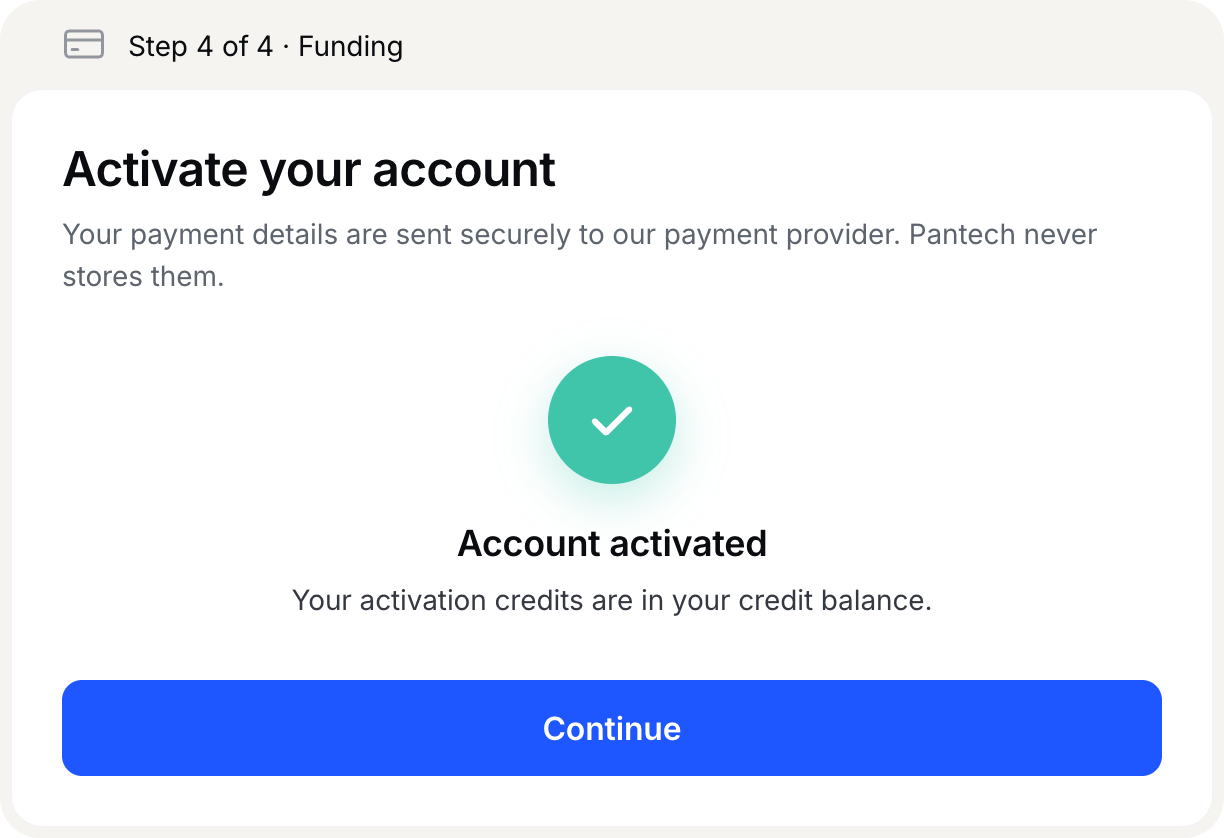
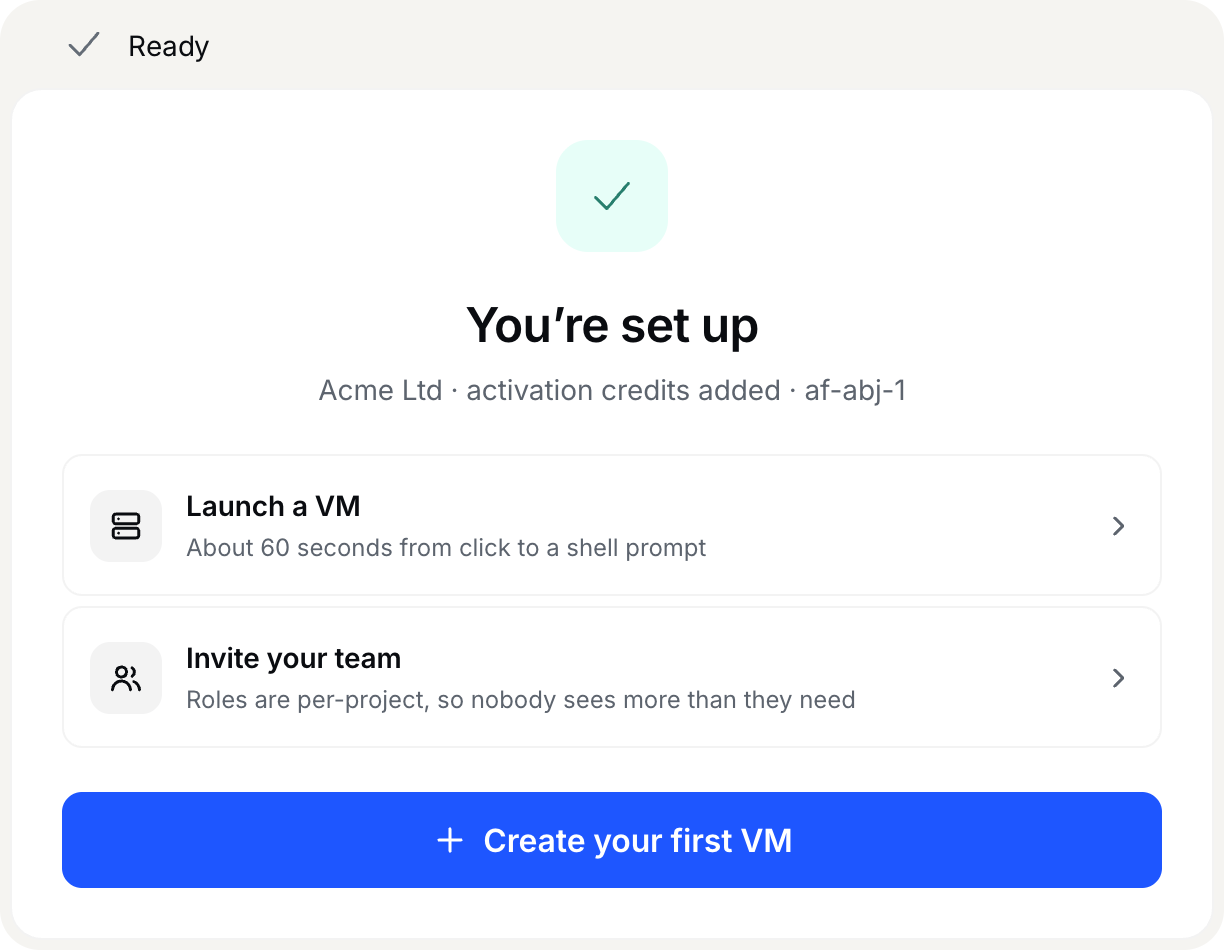
When the payment goes through, the activation credits are on your balance and your account is ready.
3. Create a machine
Choose Create your first VM. The summary beside the form shows the Upfront payment (40%), what it costs If it runs all month and If it’s stopped all month, excluding VAT. Machines are billed by the hour, so deleting one stops the billing, and the unused part of the upfront payment goes back to your credit balance.
- Name and region: name the machine, or press Generate. Leave the kind on Standard VPS, which gives the machine its own public IPv4 address.
- Image: the operating system to start from.
- Size: vCPUs, memory and disk.
- Network: optionally a security group. Leave it empty and default networking applies.
- SSH key: choose a key, or create one (below).
- Tags: optional labels to find the machine by.
Then press Create VM. The machine's page shows it provisioning, which takes about a minute.
4. Get an SSH key
Password login is disabled on every image, so you need a key before you can connect. Creating one in the SSH key section generates it for you: name it after the computer it is for, like ada@macbook-pro, then press Generate a key. The private key downloads as a .pem file. It is not shown and we do not keep a copy, so save it.
$ mv ~/Downloads/ada-macbook-pro.pem ~/.ssh/A key is added to machines you create after it, not to ones already running.
5. Connect over SSH
The Connect card on the machine's page shows its IP address. ssh refuses a key that other users can read, so lock the file down first, then sign in as the image's user: ubuntu on Ubuntu, debian on Debian (see which user to log in as). The Connect card shows the exact command:
$ chmod 600 ~/.ssh/ada-macbook-pro.pem$ ssh -i ~/.ssh/ada-macbook-pro.pem ubuntu@<ip-address> # debian@<ip-address> on DebianWelcome to Ubuntu 24.04 LTSIf networking or a security group locks you out, Open serial console on the same card gets you in without SSH.